

Your account
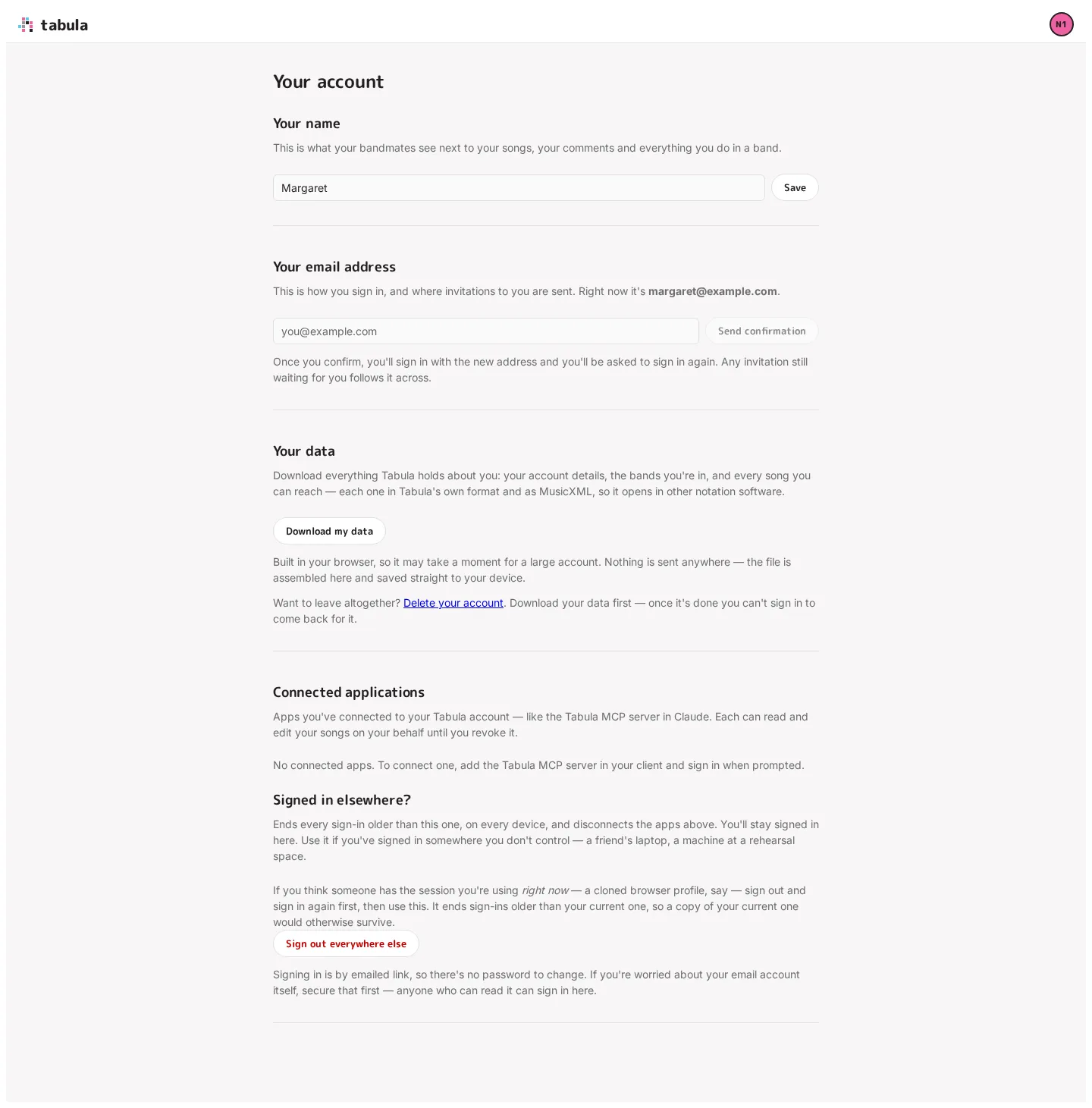
Everything about you — as opposed to your bands and songs — lives on one page: open your account menu (top-right) and choose Your account. It’s where you change your name, change the address you sign in with, choose whether this browser sends usage data, download your data, see which apps you’ve connected, and sign out of anywhere else you’re signed in. Deleting your account has its own page, linked from the bottom of this one. Your plan and seats are managed on Plan & seats.
Your name
Section titled “Your name”This is the name bandmates see next to your songs, your comments and everything you do in a band. Tabula asked for it the first time you signed in; change it here whenever you like and click Save.
The change reaches everywhere the old name was recorded — your past comments, the band activity history, and a band that was auto-named after you — not just what you do from now on. That catch-up runs in the background, so the activity feed may take a moment to follow.
Your email address
Section titled “Your email address”This is how you sign in and where invitations to you are sent. Changing it changes how you sign in, so Tabula checks it’s really you first: if you signed in more than about ten minutes ago, the section offers Sign out and sign in again in place of the form. Sign back in, then open Your account again from the account menu.
Then enter the new address and click Send confirmation. Nothing changes yet: Tabula emails a link to the new address, and that link is how it knows the address really reaches you. It lasts 24 hours. Typed it wrong? Send it again with the right address, and Tabula offers to clear the one that’s waiting.
Once you open the link:
- the new address is the one you sign in with, and you’ll be asked to sign in again — the session you had was for the address you just left;
- any invitation still waiting for your old address follows you across;
- your old address stops working straight away, and after a month it’s free for someone else to sign up with.
There’s no password to change, because there is no password — sign-in is by emailed link. If you’re worried about your email account itself, secure that first: anyone who can read it can sign in here.
Usage data
Section titled “Usage data”Tabula can send anonymous usage and error data from the browser you’re using — page-load timings, JavaScript errors, and which controls get used. Never what’s in your songs: what leaves your browser is checked on the way out, so an error report that has part of a song in it is thrown away rather than sent, and “which control you used” is the control’s name and nothing you typed or named. The switch here is off unless you turned it on, it applies to your account on every device, and you can change it any time.
The first time you’re signed in, Tabula asks once. Whichever way you answer, it doesn’t ask again; close the card without answering and it’ll ask on your next visit. Turning it off here stops the browser sending anything straight away. Turning it back on in the same tab takes effect the next time a page loads — after a “stop”, Tabula waits for a fresh page rather than picking up mid-visit.
If you don’t see this section, this copy of Tabula has nowhere to send usage data, so there’s nothing to switch on and you’re never asked.
The Privacy Policy is where to read what’s collected and how long it’s kept.
Your data
Section titled “Your data”Download my data builds a single file containing your account details, the bands you’re in and the role you hold in each, and every song you can reach — each one in Tabula’s own format and as MusicXML, so it opens in other notation software. It’s assembled in your browser and saved straight to your device; nothing is sent anywhere, and a large account can take a moment.
To export one song at a time, use the editor’s Export menu instead.
Connected applications
Section titled “Connected applications”Any AI assistant you’ve connected — the Tabula MCP server in Claude, say — is listed here, and Revoke ends its access. See Disconnecting for what revoking does and doesn’t do straight away.
Signed in elsewhere?
Section titled “Signed in elsewhere?”Sign out everywhere else ends every sign-in older than the one you’re using, on every device, and disconnects the apps above. You stay signed in here. Use it if you’ve signed in somewhere you don’t control — a friend’s laptop, a machine at a rehearsal space.
One thing to know: sessions are told apart by when they signed in, so this ends the ones older than yours. If you think someone has a copy of the session you’re using right now — a cloned browser profile — sign out and sign in again first, so yours is the newest, then use this.
A session ended this way doesn’t fail silently on the other device: its next page load lands on the sign-in page with a line saying the session ended and why.