

The editor interface
When you open a song you land in the editor. Everything you do to a song — writing notes, changing its structure, playing it back, discussing it — happens here. This page names the parts so the rest of the Editing guides can refer to them.
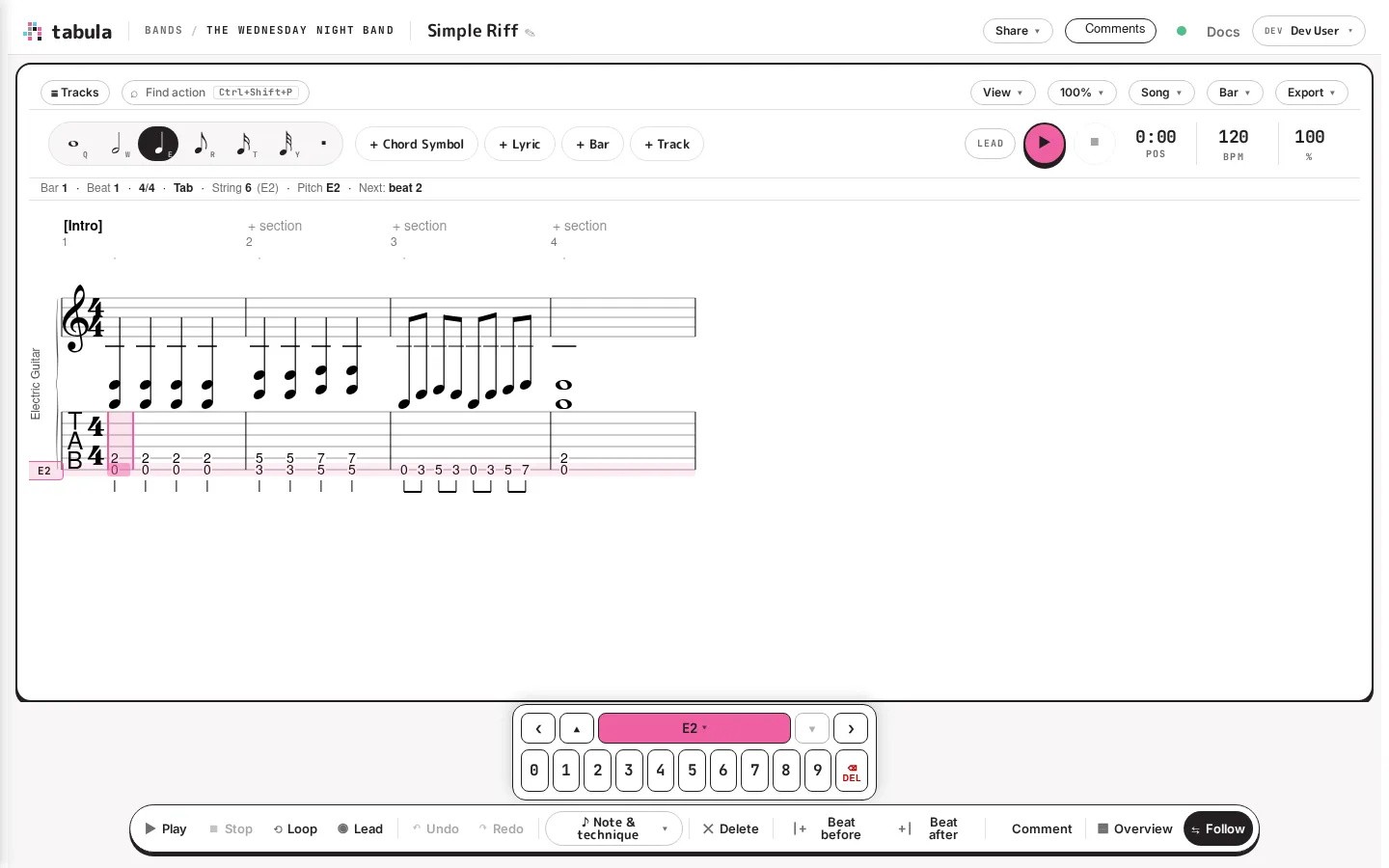
The top bar
Section titled “The top bar”Running across the very top:
- The breadcrumb (
Bands / Your Band / Song Title) shows where you are and lets you jump back to the band’s song library, or switch bands. - The song title is editable — click it to rename the song. On a phone, tap the title instead: a menu shows the full name and offers Rename… and Song Properties….
- The Share button offers Copy read-only link (the song’s URL — anyone you send it to gets whatever access their band role already allows) and Export as PDF…; if you can invite people to the band, Invite a bandmate… is there too, and jumps to the band’s member settings. On a phone there is no Share button: the same items are in the ⋯ menu, under a Share heading.
- The Comments button opens the comments panel.
- A connection dot at the right of the top bar shows your work is safe. Green means your changes are saved — Tabula saves continuously as you work, so there’s no “save” button. A pulsing dot means a save or a reconnect is in progress, and a hollow ring means you’re offline. Hover the dot, or click it, to see when the song was last saved and where, and to retry the connection when you’re offline. (Use Export when you want a downloadable copy.)
- Your account menu is on the far right. It holds the theme switch, Plan & seats, Your account, About Tabula…, and three ways to reach us — Join the Discord opens the community server, Request a feature opens the public tracker on GitHub, and Report a bug starts an email to support@nonchord.com, since a bug report often carries detail that doesn’t belong in public. See Getting help. When bandmates are in the song with you, their presence avatars appear here too — see Real-time collaboration.
The toolbar
Section titled “The toolbar”Below the top bar is the main toolbar:
- Tracks opens the track sidebar (instruments, mute/solo, volume, pan).
- Find action (or Ctrl+Shift+P) opens the command palette, a searchable list of every action with its shortcut.
- The duration palette (the row of note icons, Q W E R T Y) arms the rhythmic value for the next note. See Rhythm and durations.
- + Chord Symbol, + Lyric, + Bar, and + Track insert those elements; when the window is too narrow for them all, they fold into one + Insert menu. (Insert Chord Voicing… — a fretted chord shape rather than a lead-sheet chord symbol — lives in the Note & technique menu on the action bar below, or Ctrl+K.)
- View controls layout and display options; the zoom control (100%) and the Song menu (title, tempo, and the rest of song metadata) sit beside it, along with the Bar menu — section labels, repeat marks, time signature, tempo, gradual tempo changes, key signature, alternate endings, and Select to Here (the touch route to a selection) — and Export, which downloads the song. The Bar menu acts on the bar under your cursor, or on every bar of the selection when one is live.
- On the right is the transport — ⇄ Play together, play/pause, stop, loop, the position readout, the tempo (BPM) and your practice speed (%). See Playing your song. On a tablet or a phone the transport moves up beside Tracks and Find action — ⇄, play/pause, stop and loop — and Tracks becomes just its ☰ icon on a phone.
The score
Section titled “The score”The center of the screen is the rendered score. A track can show standard notation, tablature, or both (drums use a percussion staff, or a step grid) — for a fretted instrument you’ll typically see notation on top and tablature below, and you can toggle the staves on any track. Your cursor is the highlighted beat. Just above the score, a location strip always tells you exactly where the cursor is — for example Bar 1 · Beat 1 · 4/4 · Tab · String 6 (E2) · Pitch E2. When you have a range selected it names that too — Selected: bars 3–4 for whole bars, Selected: beats 3.1–4.1 when the range stops part-way through one — and it appends where a typed digit will land the cursor next, as Next: beat 2 (or Next: bar 3 once the current bar is full).
When the cursor’s beat is empty — a rest, or (on tab) no note yet on the active string — a faint outline of the armed duration previews where the next note will land. It moves with the cursor and updates the moment you change the armed duration, and it’s a cursor-only preview: it never becomes part of the song until you actually type a note.
The marks on the score are also buttons. Click a chord symbol, a section label like [Intro], the time signature, a tempo mark (♩=120) or a dynamic (mf) to edit that one — the cursor moves there and the matching dialog opens (a dynamic just advances to the next one). Bars that carry no chord symbol show a faint dot in the chord lane above the top staff: click it to label that bar. A bar with no section shows a faint + section above it the same way — always there, brightening on hover with a mouse. Everything here is also in the Bar and Note & technique menus and the command palette, so nothing depends on finding it on the score. Read-only viewers see the marks but none of the targets.
Under every tab staff is a rhythm lane — the stems, beams and flags that say how long each fret number lasts. Without it a triplet, a run of straight eighths, and tremolo picking would all be the same row of digits. It’s drawn even on tracks that also show standard notation, which duplicates rhythm the staff above already carries, so that the tab is readable on its own without glancing up.
The note-entry pad
Section titled “The note-entry pad”At the bottom of the score is an on-screen entry pad that mirrors the keyboard. It takes one of three forms, depending on the track the cursor is on:
- Fret pad (guitars, basses and other fretted tracks): fret numbers, with ▲ / ▼ to change string and ◀ / ▶ to move between beats. The label in the middle names the active string’s pitch.
- Pitch pad (piano, voice, winds, brass and strings): the letters A–G, entered at the nearest octave, with buttons to shift the octave up or down before you tap.
- Drum pad (drum tracks): the kit pieces — K, S, H, O, C, R, T1, T2, T3.
A tap enters the note and, if auto-advance is on, moves to the next beat. To stack notes on one beat instead — a chord, or kick and hi-hat together — long-press the key (or Shift+click it with a mouse), and the cursor stays where it is. Tap the label in the middle of the pad’s top row to open the technique wheel. Each pad also has a key to delete the note at the cursor, and on the drum pad, tapping a piece that’s already on the beat takes it off.
It’s handy on a touch screen or when you’re learning the shortcuts — but everything it does is also a keystroke, and most people edit far faster from the keyboard.
The action bar
Section titled “The action bar”A floating action bar at the bottom collects the most common editing actions — Undo, Redo, Delete, Note & technique, Beat before / Beat after (which insert a beat before or after the cursor), Comment, Overview, and Follow — so they’re reachable without hunting through menus. (Playback lives in the transport at the top.) On a phone or a narrow window, Delete, Beat before / Beat after, Comment, Overview and Follow move into the bar’s ⋯ menu so the rest fit on the screen. Note & technique opens a menu of note-level actions: Insert Note…, Insert Chord Voicing…, guitar techniques (palm mute, let ring, dead note, harmonics), accent, staccato, dynamics, and the technique wheel. Overview toggles the measure navigator panel — a bird’s-eye strip of every bar, per track, so you can jump straight to one.
Editing is keyboard-first
Section titled “Editing is keyboard-first”Tabula is built to be played like an instrument: your hands stay on the keyboard and notes go down fast. Press ? at any time to open the full keyboard reference (also reproduced in Keyboard shortcuts). The next pages walk through what to type.